Showing posts with label move. Show all posts

Wednesday, January 7, 2009

Moving Elevation Tags

As a follow-up to the previous post on ‘elevation tag not visible’, here are some notes on moving elevation tags.

The elevation tag itself is comprised of square and triangular elements. (square tag shown here)

image

When you select the triangular element and move it, it does not move the tag but only the elevation cutplane.

image

When you select the square

image 

and move it, it only moves the tag. It does not move the cutplane as shown below.

image 

To move both the tag and the cutplane, you need to select both the square and the triangular elements.

image

While moving the cutplane (applies for sections / details / elevations, etc. too), you need to move the cutplane perpendicular to the cutplane.

image

If you don't do this, any detail element drawn (lines, filled region, etc.) will shift and make your drawing inaccurate like below. The text does not shift.

image

That makes another case to model as much as possible than using lines to depict stuff in Revit!

Tuesday, December 9, 2008

click and drag

If you click and drag some objects in Revit, Revit moves the object. This is the default behavior. However if you uncheck the 'Press + Drag' option in the option bar,

image

Revit expects you to select an object first and then move it with a click + drag. This is useful at times when some objects may be moved a little bit by accident by unsteady hands!

Even though this looks like a temporary option, changing this option gets saved in Revit.ini file and sets it for all projects, and for all users in that machine. The follwing lines are added in REVIT.INI

[Selection]
AllowPressAndDrag=0

May be this option should be made a temporary - session only - option and a separate option added in the Settings menu > Options dialog box.

Monday, October 6, 2008

Non-Align two attached walls

Very simple issue.

We have two dissimilar walls that are aligned look like this in plan:

image

image

We want to move one of the walls (brick) so that there is a 2" offset. But moving one of the walls, moves both the walls. Trying to align to a ref plane that is offset by 2", moves both the walls together too.

Selecting the wall, then selecting the Move command and then selecting the disjoin option in the option bar:

image

does the job.

image

Monday, June 9, 2008

Moving filled region entities

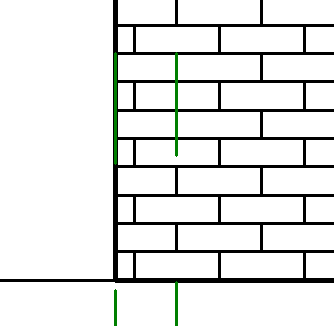
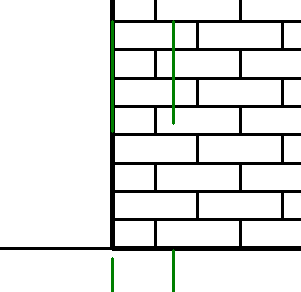
Revit allows us to move the origin or hatch lines that are part of the filled region. For instance, to align the brick pattern in this elevation,

image

you can TAB select one of the vertical lines and then use the move command to move it.

image

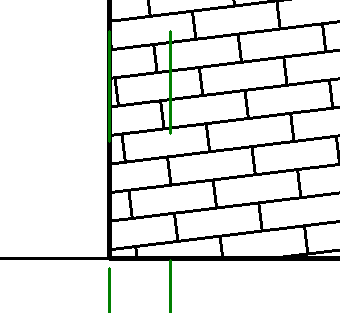
You can also rotate them.

image

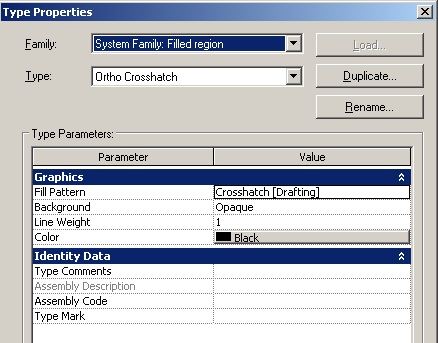
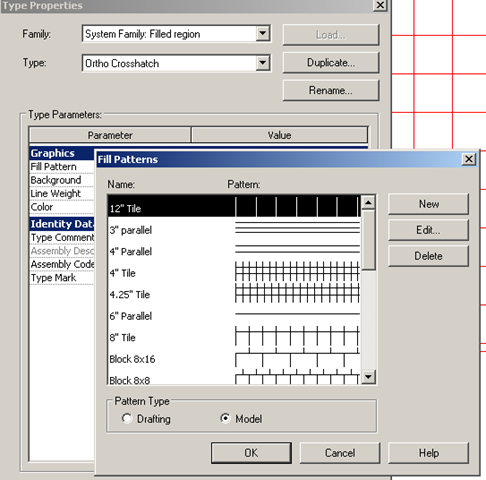
However, this works only in Model patterns. For filled regions that are part of the Drafting pattern, this option to move/rotate does not exist. However, you can go into the Filled Region property,

image

and change the drafting pattern to a similar model pattern.

image

Even though these model patterns might look similar, they don't become larger or smaller based on the scale of the view. (A 12" x 12" tile pattern always measures 12".) This might be a good thing or a bad thing based on what you want to achieve.

Friday, February 29, 2008

Fatal error while moving tags in revit 2008

Revit crashes (fatal error) while moving some tags. We could not figure out the reason behind this. We updated the drivers, switched the hardware acceleration on / off; open GL on / off. didnt help.
The workaround we do is to switch off the leaders before moving the tag.
Working on the main view (as compared to working on dependent view) also does not fatal errors.
We encourage users to insert the tags without leaders to begin with!

Friday, February 22, 2008

Moving a door window to another wall

Revit 2008 does not allow you to move a door from one wall segment to another in a straight forward manner. This is a problem especially when you have lot of information added in the Door schedule for that door element.(If you erase the door and recreate the same door, you will loose this information.) The correct method to move the door is to select the door and select the “Rehost” button that is available in the option bar. (You can cut and paste the door too.)