Showing posts with label error. Show all posts

Thursday, July 23, 2009

Instance grips stop working

When you are working on a big project, once in a while, Revit gets tired off doing all the calculations, all the coordination and shows its anger on simple families that have instance parameter grips.

For eg., here is a very simple extrusion family with an instance grip.

image

Pulling the grip after working on the project for some time would not change the geometry of the family. If you go to the properties of the family and change it’s instance value, it works fine.

image

But still, one cannot pull the grips to modify.

However, if you use the align

image

command to extend (change) the geometry, the grips become alive again!

I don't know why this happens.

Wednesday, July 22, 2009

Vista file deletion problem

I had written about a vista file deletion problem some time back. Vista would not allow a certain file to be renamed / deleted / moved. This happened to mostly DWG and RVT files that are more than 3 years old.

The happy news is that if you installed the web update 1 for the Revit 2010 versions, this problem should go away. If you still have this problem, please file a support request with Autodesk.

Monday, June 8, 2009

Vista: cannot delete, move, rename and copy files

Update: 20090715

After installing the recently released web update 1 for the Revit Architecture 2010, this problem went away. Thanks Autodesk for solving the problem and letting me know!

Original post below:

Sometimes vista keeps calculating the time remaining to delete or move or rename or copy a file. This happens even if the file is very small. (This problem was prevalent with Autodesk files – RFA, RVT and DWG… and most of the time, these files were atleast 3 or more years old!) Vista just keeps calculating and nothing ever happens. We could not even get the property dialog box to show for these afflicted files. The never ending dialog box looks loke:

2

Pressing cancel does not do anything apart from graying out the cancel button.

1

Clicking on the red “close” button closes the window, but the operation does not succeed.

If we access the same file in Windows XP through the network, XP does not have any problem changing the file.

There has been lots of posts on the web that this was a Vista indexing problem; antivirus problem; Windows defender problem, etc. We tried stopping all those processes to no avail.

Then our IT guru unchecked this option to show thumbnails (in the Folder Options dialog box in the Windows Explorer – Tools menu > Folder options) and restarted the machine.

image

The problem went away!

It looks like Vista is trying to show the thumbnails of certain files, but the DLLs associated with these filetypes cannot find the thumbnails because of the old nature of the files…. and so the DLLS make Vista go on a loop. (just a guess)

However this is not an acceptable solution and you would want to see thumbnails of pics and other files.  :(

Monday, April 27, 2009

Save to central not completed successfully

We have a shell and core project linked into a Fitout project. The shell  and core link is set to be room bounding and bounds many rooms in the fitout project. When we STC, temporarily something happens to the link and many rooms become "non enclosed" for a brief period of time (they even show up as "non enclosed" in the schedule.) All these happen while the STC is in progress. Then, Revit gives a warning that the STC was not completed because of some problems with reloading the changes. The warning also says that the error has been rectified and we can try STC again. When we retry the STC again, Revit completes it successfully.

We spent quite a lot of time and tried different options, but could not figure out the reason for this.

Autodesk subscription replies to say that: This is a known issue which can occur in Revit 2009. In Revit 2009 links can unload briefly when you're saving to central. This will cause the “Not Enclosed” error you are receiving, and can halt the Save to Central.

They advise not to choose “Move to Room” or delete rooms options.

STC the second time is the workaround.

The good news is that this seems to be resolved in RVT 2010!

Tuesday, April 14, 2009

Not compatible local file

What do we do when we get an error message that says, “The file you are attempting to save is NOT compatible with the Central File…”

image

This error is followed by:

image

Usually, one gets this error is the Central file was ‘saved over’ with another file. It does not sound plausible. But it happens!

The best course of action would be STOP working on the local file and create a new local file. Most probably, the one would lose the work since the last Save to Central.

Trying to copy from the old local and paste into the new local can work if the new edits are copy/paste friendly. Changes in schedules can be copied using scripts.


Wednesday, January 28, 2009

Central File accessed by someone else

If you belong to a large team working on a big project, once in a while you get this File being accessed indication like

image

The best part of this warning is that it goes away automatically as and when the file becomes available. However, if a user leaves the computer unmonitored after issuing a save to central command, things can get tricky. For eg., if Revit is waiting for a response from the user, like coordinating linked files,

image

then Revit locks the central file (bad) and does not allow other users to modify elements. Even a tiny “move a wall” command will be returned with the “File being accessed indication” and no subsequent save to central is possible!

Only solution is to find the culprit computer and dismiss the dialog box. This can become a pain if there are many users. The worksharing monitor (free download for subscription customers) is a great help in this regard to identify the culprit! It shows you who is stuck!

image

The best practice would be to ‘convince’ the users to stay with the computer until STC completes successfully.

Wednesday, October 15, 2008

Windows Live Writer upload image error

This post is not about Revit.

I had written some time back about posting my blogs using Windows Live Writer. Incorporating screen captures from Revit was very easy using the WLW. However, recently I started getting error messages (The remote server returned an error: (403) Forbidden)

WLW has been saving all the images I uploaded in my blog to an album called "Windows Live Writer" in my picasa account. Once the number of images reaches 500, picasa does not allow anymore images to be uploaded. Hence, the error.

WLW cannot upload to any other folder. (The picasa plugin available for WLW is not suitable for screen captures.) Other options are to use another picasa account to upload images.

Based on the tip here, I have just renamed my picasa album "Windows Live Writer" to "Windows Live Writer 01" and it works great. Even though I have renamed the album, the 500 images that are already linked from this blog still to work fine (!)

sangath 290794

(this is a test pic)

Friday, August 8, 2008

View Reference and duplicate with detailing

This looks like a bug.

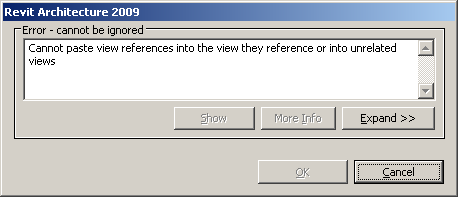
We tried to duplicate a view with detailing and got this error.

image

When we tried to duplicate the view or duplicate as dependent we didnt get any error.

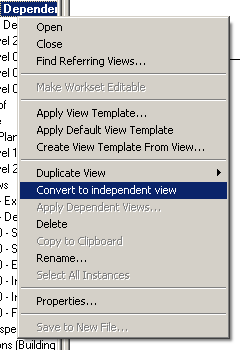
Duplicating as a dependent and then trying to convert the duplicated view to an independent view gave the same error.

image

The view had some dependent views along with View References. Revit does not like these view references to be duplicated, which is fair. However, revit could have automatically removed the view references while duplicating the view.

The workaround is to select all the view references in the view; cut them to clipboard; duplicate the view with detailing; then paste aligned the cut view references in the same place.  May be there is a better way!

Wednesday, July 30, 2008

Insufficient Privileges for API

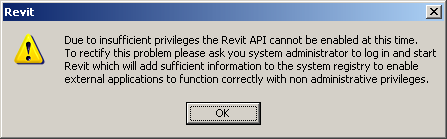
We are experimenting with reducing the user privileges in Windows. If we make a user less than a Power User, Revit spits this warning while opening the software for the first time.

insufficient privileges

Doing exactly what is suggested in the warning dialog - login as admin; open and close revit; login as regular user - solves the issue.

However, certain pre-built User types in Windows restrict users from editing any files / folders in the C drive root directory (C:\) and anything inside the "C:\Program Files".  Because of our Revit.ini is sitting uncomfortably in the "C:\Program Files\Revit Architecture 2009\Program", Revit does not like it... (does not update the recent used files, etc.) Writing Journal files also is an issue. Opening up the folder "C:\Program Files\Revit Architecture 2009" to the user has worked so far.

Thursday, July 24, 2008

Cant make type error

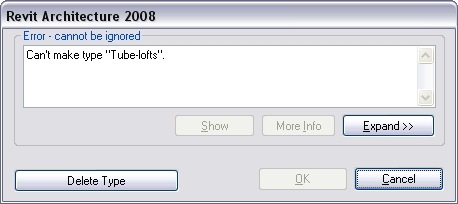
Sometimes when we load a family into a project, Revit spits out a can't make type error and does not import anything.

family error

This error is typically caused because of "0" values in some of the parameters. For instance, if someone starts creating a family from a template and does NOT use some of the parameters like width. This family would be a non parametric family.  Revit assigns the value zero to these unused parameters but a Revit project cannot accept the zero value for certain parameters...(width, etc.) So, Revit does NOT load this family into the project.

bad parameters 

To rectify this, open the family and then the Design bar > Family types. In the dialog box, select the unwanted parameter and delete it. After deleting all these unwanted parameters, the family should load properly (and since the family is NOT parametric, deleting these parameters should not affect the family too.)

Monday, June 23, 2008

Display blackout troubleshooting

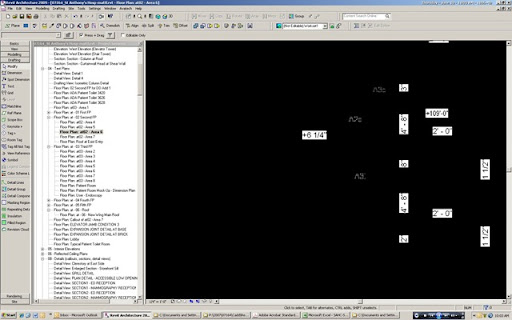
We recently upgraded a 120 MB project to Revit 2009. The upgrade went smoothly. Except for one person. His display blacked out every two hours. The Revit drawing area was fully black and when he hovers over the objects those objects would pre-highlight. Closing the project and opening it again would solve the issue. This is a pain, especially combined with a Serious Error. The display card we used was ati fire gl v 3350. This card was recommended in this thread at augi. (http://forums.augi.com/showthread.php?t=70735) Please read this thread if you have any hardware issues. Wonderful thread.

080619 Revit Error 01

image

Here is our chase. Yours might vary!

  1. Created a new local file. Didn't solve the problem.
  2. Updated the graphics card driver to the latest version.
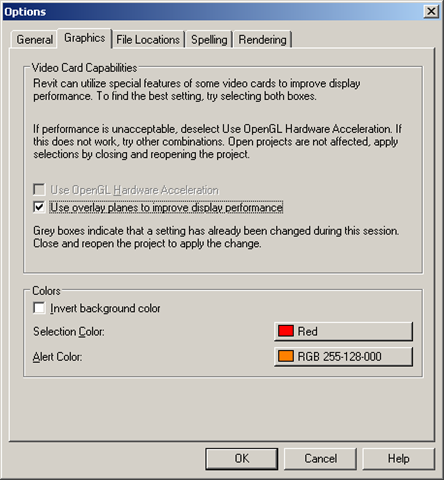
  3. Second thought was to deactivate Open GL in Revit from Settings menu > Options...Graphics tab. The option was not available. (http://revitize.blogspot.com/2008/06/opengl-not-available.html) Even disabling the second monitor and checking the Windows Hardware acceleration didnt help.
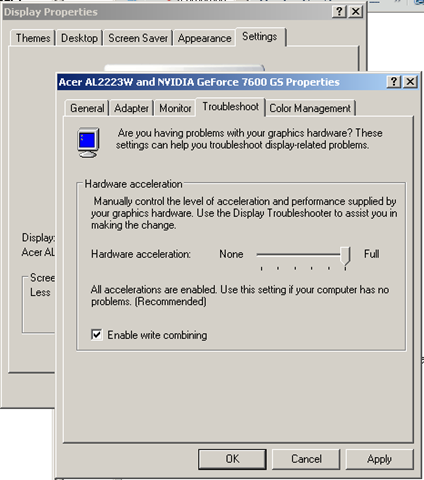
  4. We switched off the windows Hardware acceleration in the Windows Display Properties > Settings tab > Advanced > Troubleshoot tab. But didnt help.
  5. We did get similar blackouts in ADT 2005 sometime back. In that case, we had to deactivate the support for hyperthreading to solve this. We had set the WHIPTHREAD autocad variable to 0. Since Revit didn't have such a command, we tried setting the AFFINITY in the Windows TaskManager and by using SMP Seesaw based on the "Revit and Dual Core" entry at http://revitcoaster.blogspot.com/
  6. Because we are running 32 bit version Windows, we had the 3GB switch on. This option, typically creates some issues (cannot access the internet, display issues, unpredictable Windows, etc.). We tried the USERVA setting along with the 3GB switch. Microsoft help on this issue here. This didnt help. Deactivating the 3GB switch altogether also didnt help.
  7. In the end, we just swapped a nVidia card and things are fine. (We have the "ati fire gl v 3350" in other machines, which work fine too!)

Friday, June 20, 2008

OpenGL not available

We have had issues on a particular computer with Revit 2009 display. When we went to turn off the Open GL option in the Settings menu > option command; graphics tab, it was not available.

image

The graphics card supported OpenGL. If we had set NONE in the Hardware acceleration in the Windows Display properties (accessed from the Control Panel) (settings tab > advanced > troubleshoot tab), this can happen.

image

Autodesk also told us that the OpenGL option wont be available, if we had the 2nd monitor enabled.

Tuesday, April 22, 2008

Memory overflow, Fatal error and 3GB switch

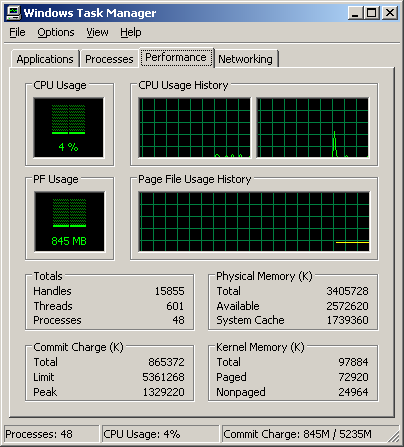
Revit 2008 is a 32 bit application. And so windows allows Revit to access only 2GB of RAM. 32bit Windows can only see 4 GB. If the revit project becomes bigger than 150MB, then the project must be teasing the max memory. You can check the memory used the Revit and the total memory consumed by right clicking on your Windows task bar and selecting "Task Manager"

image

If you start getting fatal memory errors, you can activate the 3GB switch in your computer. More info from autodesk website. If you activate this switch, Windows will allow Revit to use upto 3GB. But your computer will be little slow. Revit uses lots of memory while printing and while upgrading the project to the latest version. More info on Windows 32 bit memory.

Some machines dont like the 3GB switch and give a lot of head ache (cannot access the internet, display issues, unpredictable Windows, etc.) In such a case, we use the USERVA switch along with the 3GB and it works great. Microsoft help on this issue here.

Windows 64 bit version can see Terra Bytes of RAM. (However this is limited by the motherboard capacity) If you install Revit 32 bit version in Windows 64 bit, Revit can use upto 4 GB. If your project needs more than 4 GB, currently there is no option.

Revit 64 bit version will be able to handle TBs of info when it is released by Autodesk! More info on memory allocation and address spaces here at microsoft website.

Friday, February 29, 2008

Fatal error while moving tags in revit 2008

Revit crashes (fatal error) while moving some tags. We could not figure out the reason behind this. We updated the drivers, switched the hardware acceleration on / off; open GL on / off. didnt help.
The workaround we do is to switch off the leaders before moving the tag.
Working on the main view (as compared to working on dependent view) also does not fatal errors.
We encourage users to insert the tags without leaders to begin with!