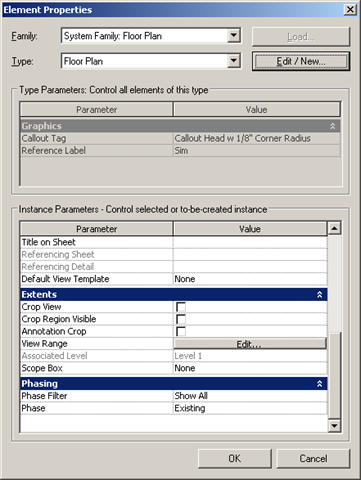
Groups, by themselves, don't have any phase parameter. So, you cannot create a group and then change it's phase.
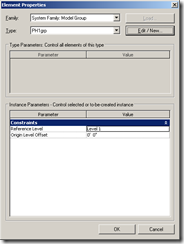
However, individual members of the group (accessed via 'Edit Group' function) have phase parameters. (more detail about this below!)
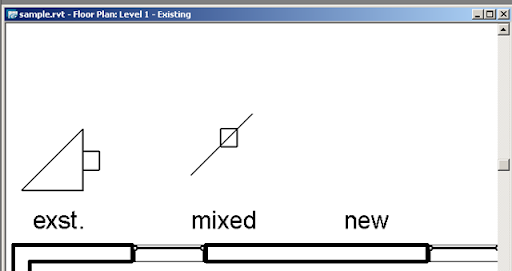
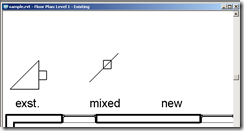
When you create a group, the group can have elements that belong to one phase or multiple phases. Irrespective of the phase of the view the Group was created, the sub elements of the group live in their respective phases within the group. The pictures below show an Existing Phase view (on the left) and a New Construction view (on the right) with the same instances of the groups.
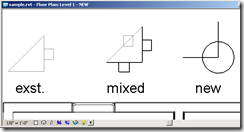
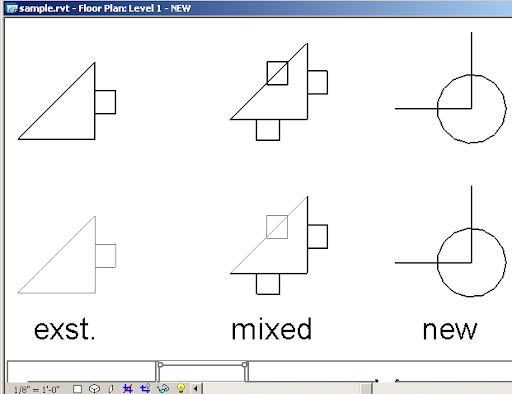
However, when you copy any group, the new instance of the group takes the phase of the current VIEW (similar to the ROOM object). This also means, that if a group has elements from many phases, all these elements become part of the phase of the current view. The pic below shows originals and copies of different groups, all becoming part of New Construction, which is the phase of the current view.
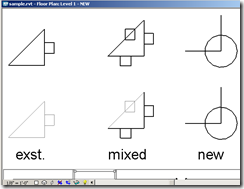
In RVT 2008: Changing the phase of the elements that comprise a group - using the Edit Group function - results in unpredictable results based on the phase of the current view. Moving objects from one phase to another does not get propagated correctly to other instances of the group. Depending on the current view, the phase parameter gets swapped / unchanged, etc.
In RVT 2009: Changing the phase of the elements that comprise a group - using the Edit Group function - changes only the phase of those particular elements in that particular instance of the group. The change does NOT get propagated to other instances.
- The effective way to propagate changes in the phase of the elements is to create a new group with elements in different phases and then swap this new group with the old ones.
- To assign a specific phase for a group, create it in the view which has this specific phase assigned to it.
You can create a group by copying, copy/pasting, mirroring, dragging from the project browser > Groups, etc.