Showing posts with label revit 2009. Show all posts

Tuesday, September 23, 2008

View Filter differences in 2008 and 2009

View filters behave a bit different in 2008 and 2009. We have a filter called "Filtered Objects" in our template that applies to all categories and which is Filtered By based on the following Filter Rule in RAC 2008. (ScheduleSorter Project parameter equals <nul> or any other value)

image

When opened in RAC 2009, the filter changes to:
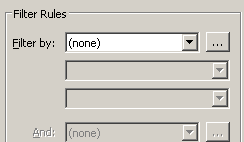
image

This can cause quite a confusion, especially if the filter is used to turn on/off the visibility of the objects... based on the unwanted behavior, it can switch off all the objects in view when opened in 2009!!!

I will report this to Autodesk.

Tuesday, September 16, 2008

Design Option Visual clues

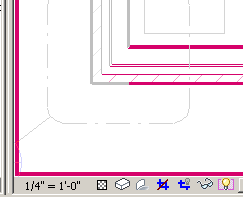
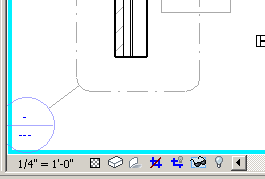
Revit comes with a lot of visual clues to represent various modes. For eg., the reveal hidden elements mode is shown like

image

The temporary hide / isolate mode is like

image

Group edit mode is like

image

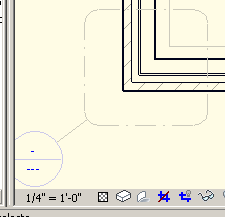
However, Design option edit more just grey out the objects that don't belong in the design option.

image

Since greying out (screening out) of objects are used in architectural drawing to denote phases, existing condition, etc., a better visual clue with a border like temp hide / reveal hidden will help a lot. It will be even better if the border came up with a name of the design option being edited.

Revit help says:

To determine whether you are currently in Design Option Edit mode, check the Editing button of the Design Options toolbar.  If it appears to be pressed (instead of raised), you are in Design Option Edit mode.....To determine which design option is currently active for editing, move the mouse over the Editing button. It displays a tooltip that indicates the active option, using the following format

I wish there was a better clue.

Friday, September 12, 2008

Crop region and Annotation crop

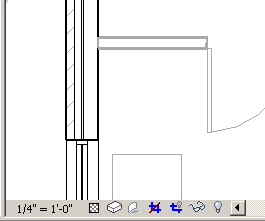
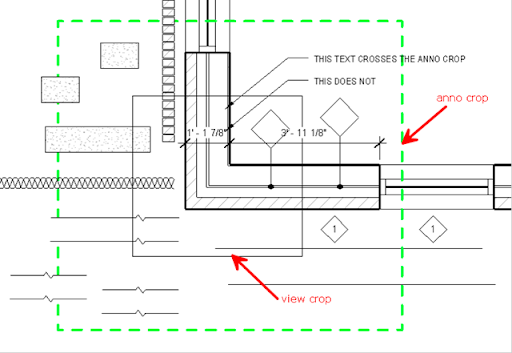
Here is a view that has annotation crop shown in green; the view crop is shown but the view is not cropped.

image

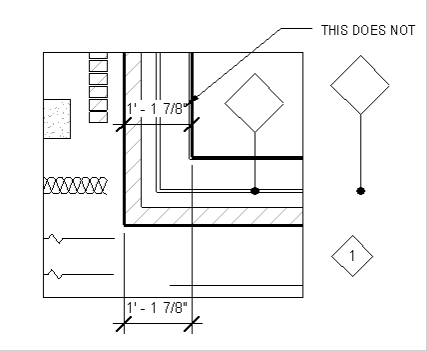
After the view is cropped, it looks like:

image

The View crop (boundary) crops the

  • model elements
  • detail components
  • repeating details
  • filled regions
  • Insulation, etc.
  • detail lines

It does not crop:

  • annotation tags
  • Text objects

The annotation crop crops both the text and annotation tags.

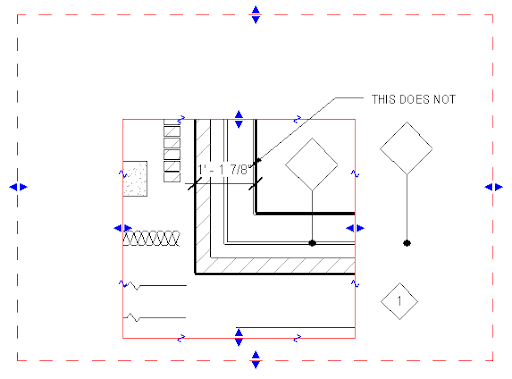
Dimensions - get cropped by both the view crop as well as the anno crop. If any one of the witness points of a DIM is not within the view crop region, then Revit does not show that particular string. And if the DIM string extends beyond the anno crop, it is not shown.

image

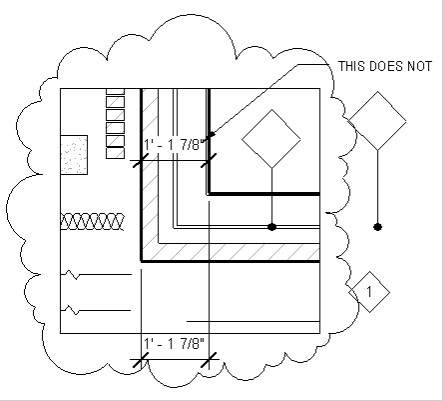
If we want to draw anything outside the view crop boundary, it is not possible. (One can draw stuff on sheet!) There may not be any circumstances that require it. However, Revit allows us to draw Revision clouds outside the boundary. (Thank God!)

image

Quite nuantic!

Monday, September 8, 2008

Noteblock vs Schedules

Can the Noteblock command be built inside the schedule command?

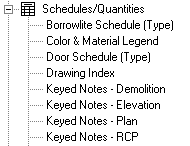
Noteblocks are grouped inside the schedule set in the Project Browser.
image

This misleads users to try to create a schedule of annotations using the schedule command.

I feel this distinction is not needed. Inside the Schedule creation command one could select Model or Annotation elements to schedule elements accordingly. 
image

(Or revit should group the noteblock separately in the project browser?)

Friday, August 8, 2008

View Reference and duplicate with detailing

This looks like a bug.

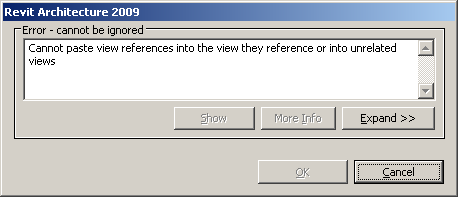
We tried to duplicate a view with detailing and got this error.

image

When we tried to duplicate the view or duplicate as dependent we didnt get any error.

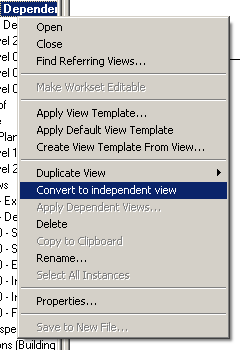
Duplicating as a dependent and then trying to convert the duplicated view to an independent view gave the same error.

image

The view had some dependent views along with View References. Revit does not like these view references to be duplicated, which is fair. However, revit could have automatically removed the view references while duplicating the view.

The workaround is to select all the view references in the view; cut them to clipboard; duplicate the view with detailing; then paste aligned the cut view references in the same place.  May be there is a better way!

Thursday, June 19, 2008

Plan region stops working

In Revit 2009:

If you are working on a big project, once in a while, the plan regions you had created before become toooooo tired and stop working. The irony is that they might have been working fine for the past 2 weeks, then suddenly they would behave as if they have the view range as that of the view itself.

image

Changing the view range in the plan region does not work. Neither changing the view range of the view itself. In the pic below, the window at 6' sill is not visible, even though the plan region is set to have the cut plane at 7'.

image

To correct this bug or memory issue, you have to select the plan region, and click edit in the option bar,

image

and then just move the plan region boundary by an inch (and you could move it back too!) and Finish sketch. Voila!

image

The window is back. However, if you have too many plan regions in the view, this process is painful. I hope someone comes up with a better solution.

(The other option is to send the file to Autodesk via FTP and wait for a couple of days....)

Wednesday, June 18, 2008

ProteinMaterialLibrary.cab install - download problems

Autodesk announced the web update 1 for RAC last week. During the installation process, the installer tries to download the ProteinMaterialLibrary.cab, which is 679 MB. Autodesk strongly recommends us to update the library because of the changes made to them. However, it looks like the ProteinMaterialLibrary.cab download is not usually completed successfully. (http://forums.augi.com/showthread.php?t=78745&page=4)

There is a direct link to the ProteinMaterialLibrary.cab but I am NOT sure whether this is the Web Update 1 version. Autodesk is giving away this update only to subscription customers. However this link can be accessed by anyone, and so this may not be the updated CAB!!!

I asked autodesk about this via the subscription support request.... They are asking us to do download the installer again to reinstall RAC (another 400MB)

hmm...

Friday, June 6, 2008

Phases and Revit Links

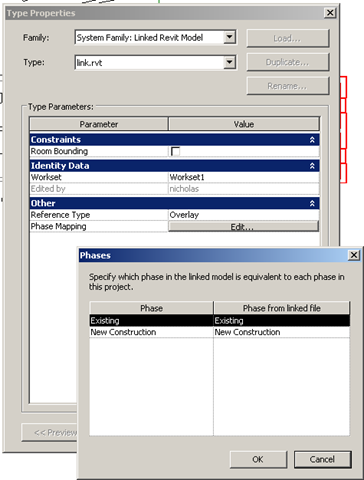
Revit 2009 has a very good option to set phase mapping for a linked Revit file. This option is available in the Type Properties dialog box of the linked Revit File.

For eg., if we are working on an Addition to an building that was constructed 2 years ago (both revit projects), then we can map the "New Construction" phase of the building that was constructed 2 years ago to the "Existing" phase in the Addition!

image

Monday, June 2, 2008

Revit Link differences - host, link, custom

In continuation to "Hiding individual objects in linked Revit files", people asked me why would one choose one option of linking over other - By Host View or By Linked View or Custom?

******************************************************
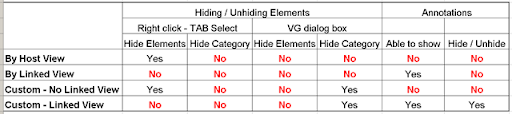
I didn't expect this post to become too long. So, here is a summary:

  1. If you want to see annotation objects from the linked file, you have to select "By Linked View"
    OR
    select "Custom" and then select a view for the Linked View option.
  2. If you want to individually (or collectively) switch on/off objects in the linked model, then don't select By Linked View.

image

******************************************************

Here is the full version:

If you choose By Host View:

  • You can individually switch on / off objects.
  • You cannot collectively switch on / off a category in the right click menu. (If you try, all the objects that belong to that particular category are switched off in both the host model and the linked model in the current view. )
  • You cannot see annotation objects (like Room tags, etc.).

If you choose By Linked View:

  • You can choose to display by any linked view, as long as the linked view is similar to the current view
  • You cannot override any visibility settings for the linked model
  • You cannot individually switch on / off objects.
  • You cannot collectively switch on / off a category in the linked file.
  • You can see annotation objects, as long as the linked view is parallel to the current view and the annotation objects are visible in the linked view in the linked model.

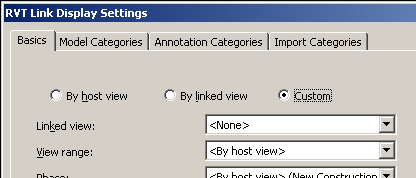
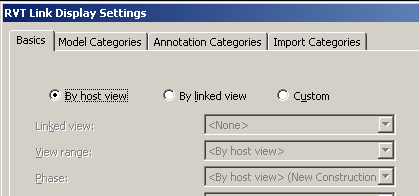
If you choose Custom and 'None' in the 'Linked View' options in the custom basic settings:
image

  • You can override many visibility settings for the model objects in the the linked model
    image
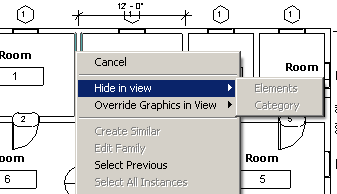
  • You can individually switch on / off objects using the right click menu with TAB Select.
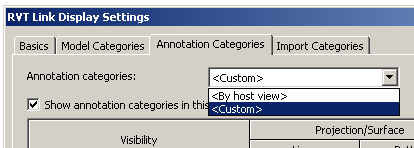
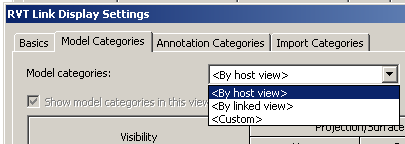
  • You cannot collectively switch on / off a category using the right click menu. However, you can switch off a model category after selecting "Custom" in the Model / Annotation categories tab in the RVT Link Display Settings.
    image
  • You cannot see annotation objects like tag, text, dims.

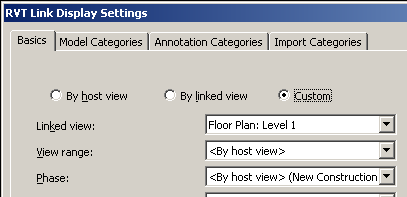
If you choose Custom and select a view in the 'Linked View' options in the custom basic settings. :
image

  • You can override many visibility settings for the model objects in the the linked model
  • You cannot individually switch on / off objects using the right click menu with TAB Select.
  • You cannot collectively switch on / off a category using the right click menu.
    image
    However, after selecting "Custom" in the Model / Annotation categories tab in the RVT Link Display Settings, you can switch off/on a category there.
    image
  • You can see the annotation objects, as long as a parallel view with annotation objects is selected in the 'Linked View' in the custom basic settings. (If the annotation objects DONT show up, you have to change the RVT Link Display Settings to 'By Host View' then press "Apply" and then change it to "Custom". )
    image

And what about the subtype RVT link shown in the VG? Revit keeps track of each instance of the linked revit file and automatically names them as 1,2,3...) This allows you can control the visibility of individual instances of the linked file or all the instances.

image

Tuesday, May 27, 2008

ADT or ACA 2009 and RAC 2009

I have not used ADT much since the 2005 version. Sadly, the 2005 version had some stuff even the RAC 2009 cannot match!  Anyway, I looked at ACA 2009 a bit and found these interesting things and some old stuff that would make Revit even better:

  • ADT 2009 has an automatic DWF publishing feature. Whenever you save or close the file, it creates a DWF! This might be very useful for project managers who want to check the progress but dont have an ADT license (or dont want to inadvertently screw up the dwg. )

image

  • At last, objects can have multiple leaders. When you remove these leaders, you can specify which leader to remove! (unlike in Revit)
  • Menu Browser: provides easy access to a variety of content, including commands and documents - we need this in Revit!
  • CUI: Ok...how long do I have to wait to get this in Revit! 
  • Wall endcaps!!! These were wonderful even in the 2005 version. Now, it just kicks ass!
  • Multiline tags - the ability to change the wrapping width of an attribute. In RAC, we need to edit the family to make such a change!
  • 64 Bit version! (More than ACA, RAC needs it. And needs it now!)
  • Repeating the same command (the good ol keyboard RETURN!)
  • Room, Door number integration.
  • User Profiles
It looks like ACA gets all new good features of Revit and Revit is very reluctant to borrow from ACA. Sadly, the argument that Revit is inherently better, and so does not need any features from other applications does not hold water.

Wednesday, April 23, 2008

View Templates in Revit 2009

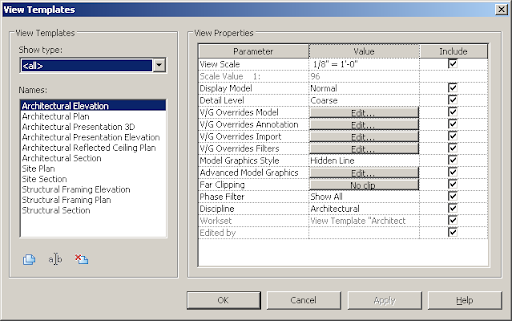
The view template upgrades in 2009 is one of the best. Previously one had the all or nothing option with View Templates. For instance, you cannot apply the same view template to views of different scales, because the scale factor is built into it.

image

In 2009, Revit allows you to select or deselect aspects of the View Template that you want to apply.