Showing posts with label Browser Organization. Show all posts

Tuesday, October 21, 2008

Schedule list of Revised Sheets

Question: Is there a way to schedule drawing sheets based on their revision number? For eg., you have a project with a lots of sheets and before issuing a new Revision set, you want to get a list of the sheets that will be issued for this particular revision.

Even though there is a Revision parameter in the sheet properties,
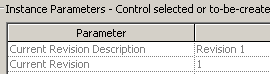
image
it is not exposed in the list of available fields for the Drawing List schedule.
image
So, it looks like getting a list in a schedule form seems to be difficult.

However, you can use browser organization to group the sheets that belong to each revision numbers in the Project Browser. To do this:

  1. Go to Settings menu > Browser organization > sheets tab > New > name it as "Sheets by Revision"
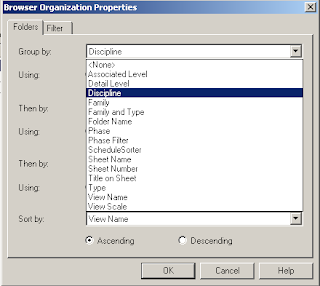
  2. In the Browser Orgn Properties dialog box, in the 'group by' select 'Current Revision' and hit ok.
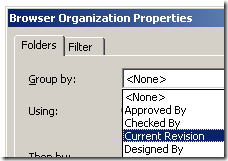
    image
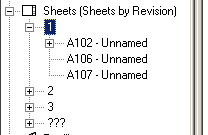
  3. The project browser now groups the sheets by the current Revision Number.
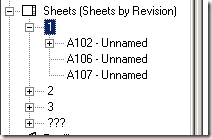
    image

Monday, March 24, 2008

Custom Sheet / View Browser Organization


To create your own custom sheet / view organization, you can select the “sheet” category in the project browser and then click on the property tool. You can select any type other than the “all” and edit its folder and filter parameters. You can create groups (folder) of many of the parameters.
Here is a step by step guide to create a custom group. First we create a project parameter for “Folder Name”
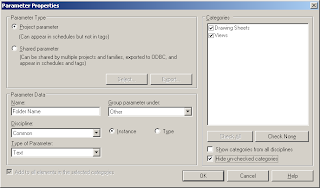
Go to Settings > Project parameters > add one called “Folder Name” of Text type and select only the Drawing Sheets and Views categories to apply. Select “Views” in the project browser and click the properties button.
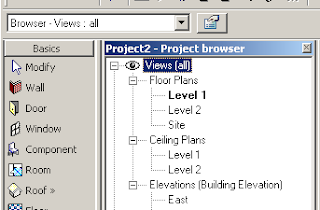
Hit duplicate in the type properties dialog box. (Duplicate is not available when the type “All” is selected. You have to select a different one) and name it “custom folders”
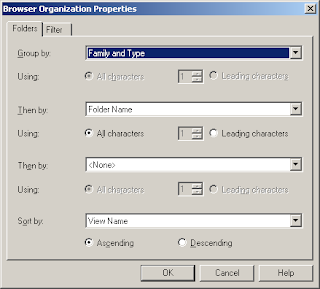
Hit the Folders button and select “family and type” from the drop down menu in the folders tab for “Group by” and select “folder name” from the drop down menu for “then by” (the project browser will be grouped by Family and type first and then by the folder name parameter we just created.
Click ok twice to dismiss all dialog box.
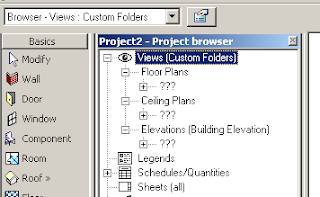
Now your project browser should have changed and should have lot of ‘?’ marks. This just means that these folders are not yet named / created.
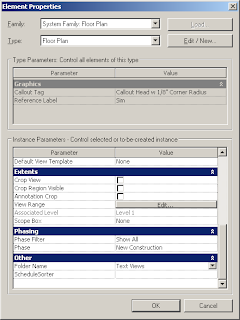
To create a folder, right click and go to a particular view’s property. At the bottom the project parameter “Folder Name” that we had created shows up. Just type the name of the folder you want for eg. “Text views”.
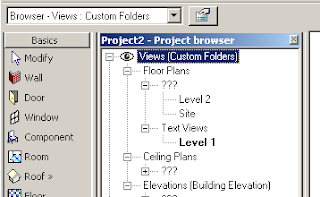
Now Revit will create a group called Text views and show the particular view within it. You can select a bunch of views in the project browser to move them to this folder or create another folder.
Tuesday, March 18, 2008

Sheet not visible in Project Browser


We have had some reports that the sheets dissappear from the Project Browser. When people tried to create the sheet again, Revit gave an error saying that the sheet already exists in the project.
The sheets may be hidden using one of the Revits Sheet organization techniques. This option is available so that you can organize sheets in a folder (subcategory) format in the project browser. Not unlike revit schedules, you can show only certain sheets in the project browser and hide some others. To find the missing sheet, you can select the “sheet” category in the project browser and select the type “browser-sheets-all” in the type selector. Now the project broser should show all the sheets.