Showing posts with label dependent views. Show all posts

Thursday, April 2, 2009

duplicated dependent view loses some detail callout tags

When we duplicate a view as dependent, Revit does not show all the detail callout tags / detail section view tags in the dependent view. For eg. when the follwoing view

image

is duplicated as dependent, we lost the left (shorter)detail tag as shown below.

image

The culprit is the combination of annotation crop and reference view tags!
Even though the primary view has its annotation crop turned off,

image

Revit switches ‘on’ the annotation crop for the dependent duplicated view as shown below.

image

To bring back the lost detail tag, we just need to make the annotation crop a bit bigger. (Revit is a bit unforgiving here – even if the annotation crop is big enough to engulf the tag extent, Revit hides it. We need to make the anno crop bigger to make it show.)

image

The annotation crop only affects the tags that represent Reference Views. Other normal view tags are not affected because Revit does not consider them ‘strictly’ annotation objects! But Reference view tags are considered as annotation objects (Only duplicating with details brings the reference tags! Duplicating a view does not; In this case the reference tag is NOT hidden, it just is NOT there! )

Friday, November 7, 2008

deleting views deletes details along

In continuation to yesterday's blog,

If a view is deleted, Revit gives a warned like this sometimes:

image

Revit basically lists all the callout views that were created in this deleted view. For eg. when you create a callout view in a view called 'xyz', Revit assigns the view 'xyz' as the callout view's parent. And when the parent view gets deleted, the callout view is also get deleted.

image

If you dont want this to happen, you can change the Parent View parameter to none in the callout view's property.

image

Changing this value automatically changes the Far clip settings to 'independent' and the 'Show in' parameter to 'intersecting views'

image

Now deleting the parent view will not delete these callouts.

(just to irritate you, now, if you changed the value of the 'show in' parameter to "none" then the callout tag wont be visible in any views...!)

That brings us back to the best practices: It is always good to create callouts from the Primary view or in just one dedicated view, which you might never have to delete.

Monday, September 15, 2008

Visibility graphics and dependent views

The Trainers conundrum:

We have model elements and then annotation elements in Revit. Annotation elements are view dependent and don't show up neither synchronized in other views. And VG is always view dependent. Great!
image

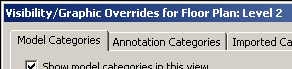
We also have dependent views, where the annotation elements are synchronized among other dependent views and are not strictly view dependent . The VG tweaks are the same for the parent and all its dependent views. However the dialog box still says "Overrides for dependent view!", which is not entirely correct.

image

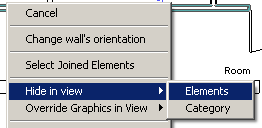
Then we have this amazing ability to hide a particular object using the "Hide in View >Elements" option in the right click menu:

image

This hides the object only in that view and not in it's synchronized dependent / parent views. Even though this looks little counter intuitive, this behavior is very useful.

Tuesday, March 4, 2008

Dependent views conversion changes

A dependent elevation or dependent section view cannot have its own view depth / cut plane. (This is true for the plan views also, however, because we don’t get a separate view tag for the plan views, there is less confusion there) Dependent views of elevation / sections have their own view tags, and the cut plane and view depth are visible, but cannot be edited! To change the view depth or cut plane of the dependent elevation / section, you have to change the view depth / cutplane of the parent view.
To convert a dependent view to an independent view, right click on the view in the Project browser, and select "Convert to Independent"

Tuesday, January 29, 2008

Propagating Dependent views

Revit has a very good utility that propagates dependent views (from one floor plan to another)
1. Create dependent views for a particular floor plan (say “Level 1”); crop them, etc.
2. Right click on the view (“Level 1”) and select “Apply Depended view..” .
3. Revit lists all the other views to which the dependent view of Level 1 can be applied.
4. Dependents view can be applied only if the view is of the same scale.