Tuesday, September 23, 2008

View Filter differences in 2008 and 2009

View filters behave a bit different in 2008 and 2009. We have a filter called "Filtered Objects" in our template that applies to all categories and which is Filtered By based on the following Filter Rule in RAC 2008. (ScheduleSorter Project parameter equals <nul> or any other value)

image

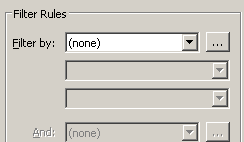
When opened in RAC 2009, the filter changes to:
image

This can cause quite a confusion, especially if the filter is used to turn on/off the visibility of the objects... based on the unwanted behavior, it can switch off all the objects in view when opened in 2009!!!

I will report this to Autodesk.

Monday, September 22, 2008

Schedule tips

Interesting thing I came across in Revit Help on Schedules today.

"Mouse-wheel scrolling is available in schedule views. Move the mouse wheel to scroll vertically. Hold SHIFT and move the wheel to scroll horizontally."

Horizontal movement is interesting!

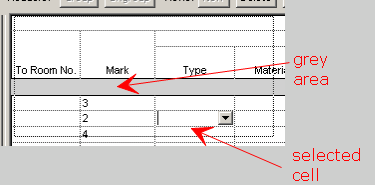
Also, the vertical scrolling does not work if a cell is selected. (Horizontal still works!)
image

You have to unselect the cell by clicking on the "grey area" or select more than one cell (by clicking on one and dragging) for vertical scrolling to work.

Wednesday, September 17, 2008

Show cut patterns for Existing Phase

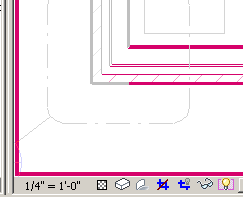
Be default, the cut patterns for walls, etc. that belong to a previous phase are not shown. The cut lines are also greyed out like this:

image

The options to tweak this is here: Settings menu > Phases > Graphic overrides. Here is the default setting:

image

However, if you want to show the walls with cut patterns like this:

image

You need to tweak 2 settings in the Graphics Overrides.

1. Select the "Existing" row under "phase status", and then click on "override" under 'cut patterns' and and then click "clear overrides"
2. Select the "Existing" row under "phase status", and under 'material', select "Phase Exist" and delete it. (don't select a different material).

The Graphics override dialog should look like this:

image

That's it.

Tuesday, September 16, 2008

Design Option Visual clues

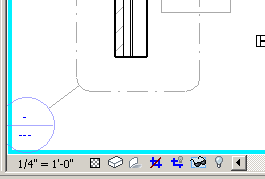
Revit comes with a lot of visual clues to represent various modes. For eg., the reveal hidden elements mode is shown like

image

The temporary hide / isolate mode is like

image

Group edit mode is like

image

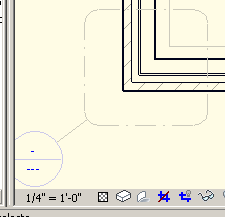
However, Design option edit more just grey out the objects that don't belong in the design option.

image

Since greying out (screening out) of objects are used in architectural drawing to denote phases, existing condition, etc., a better visual clue with a border like temp hide / reveal hidden will help a lot. It will be even better if the border came up with a name of the design option being edited.

Revit help says:

To determine whether you are currently in Design Option Edit mode, check the Editing button of the Design Options toolbar.  If it appears to be pressed (instead of raised), you are in Design Option Edit mode.....To determine which design option is currently active for editing, move the mouse over the Editing button. It displays a tooltip that indicates the active option, using the following format

I wish there was a better clue.

Monday, September 15, 2008

Visibility graphics and dependent views

The Trainers conundrum:

We have model elements and then annotation elements in Revit. Annotation elements are view dependent and don't show up neither synchronized in other views. And VG is always view dependent. Great!
image

We also have dependent views, where the annotation elements are synchronized among other dependent views and are not strictly view dependent . The VG tweaks are the same for the parent and all its dependent views. However the dialog box still says "Overrides for dependent view!", which is not entirely correct.

image

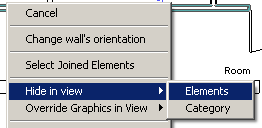
Then we have this amazing ability to hide a particular object using the "Hide in View >Elements" option in the right click menu:

image

This hides the object only in that view and not in it's synchronized dependent / parent views. Even though this looks little counter intuitive, this behavior is very useful.