Friday, May 30, 2008

Hiding individual objects in linked Revit files

To switch off individual elements in a linked RVT file, you could TAB select a particular object, then right click, and select 'Hide in View'. Very simple. The irony is that this works only if you have set the display setting of the RVT link "By Host View" or "Custom" in the VG dialog box.
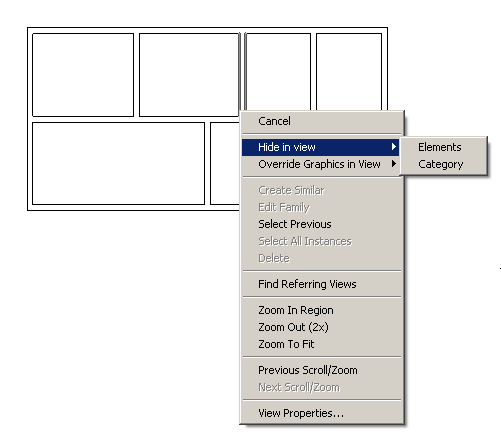
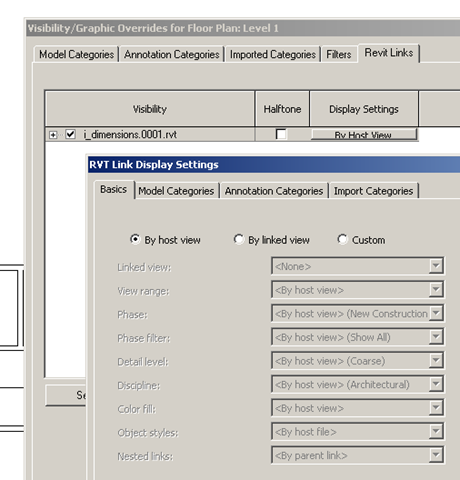
image image

If you set the display setting of the RVT link "By Linked View" in the VG dialog box, then we don't get options in the "Hide in View" right click menu (see pic below)
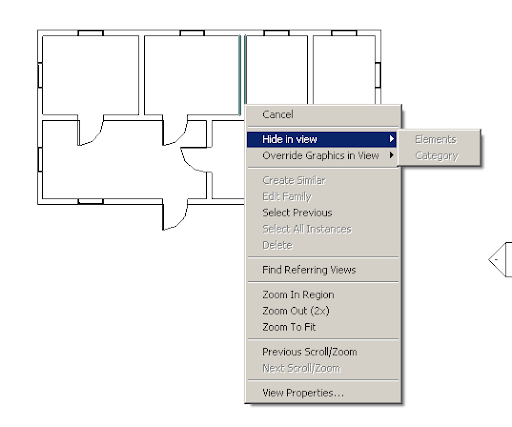
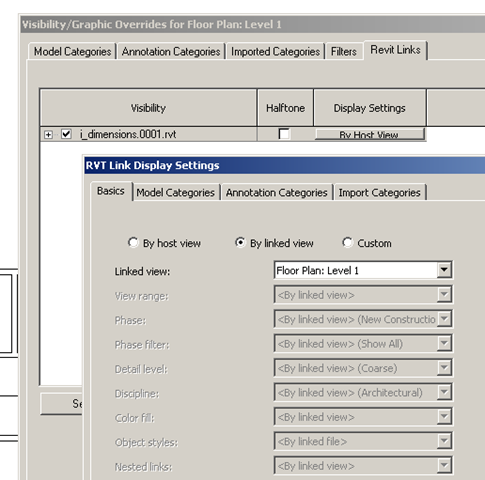
image image

if you set the display setting of the RVT link to "Custom" in the VG dialog box and select a view for the linked view option, then we don't get options in the "Hide in View" too.

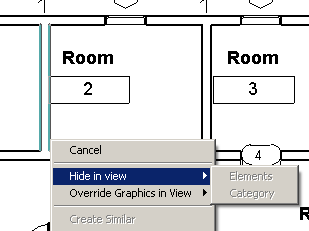
image image

However, when you set Linked View option in the basic tab to be None, then you can TAB select and hide individual objects.

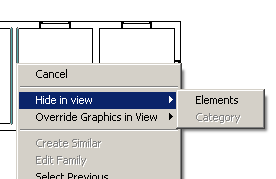
image   image

Thursday, May 29, 2008

Filled Region not transparent

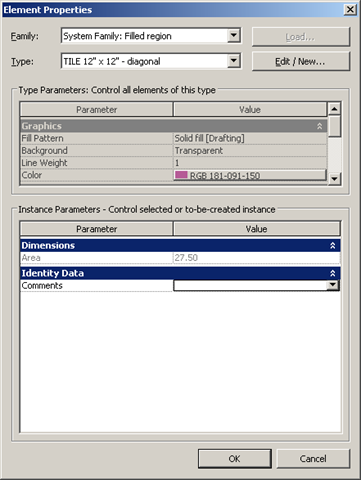
One of the nice features in Revit, is to be able to make a filled region (hatch) transparent or opaque. This option is in the type properties of the filled region.

image

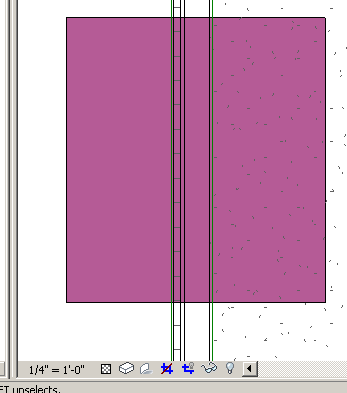
However, one of our users complained that the filled region was NOT transparent even after setting this setting. See pic below. I was of the opinion that it was a display issue because of 'not enough memory'

image

However, after sometime, she realized that the view was in 'wireframe' mode and once she changed this to 'Hidden', the filled region behaved correctly. See pic below. Seems a bit counter intuitive (things should be transparent in wireframe and vice versa!) but ironically this works like this in both revit architecture 2008 and revit architecture 2009.

image

Wednesday, May 28, 2008

Zoom Sheet size

Because of this amazing zooming and panning capability in digital drawings, people loose track of the scale of the drawing (and the building!) Most of the times, this lack of scale understanding results in detailing / modeling more than necessary.

Revit has this rarely used command:

View > Zoom > Sheetsize (shortcut ZS in default installations)

This zooms the drawing window to match the print size based on the scale of the view. It is a good idea to check our model and the details based on this zoom factor. This habit also helps when we decide NOT to spend time to clean a wall joint properly, assuming that it may not look jarring in the sheet!

Tuesday, May 27, 2008

ADT or ACA 2009 and RAC 2009

I have not used ADT much since the 2005 version. Sadly, the 2005 version had some stuff even the RAC 2009 cannot match!  Anyway, I looked at ACA 2009 a bit and found these interesting things and some old stuff that would make Revit even better:

  • ADT 2009 has an automatic DWF publishing feature. Whenever you save or close the file, it creates a DWF! This might be very useful for project managers who want to check the progress but dont have an ADT license (or dont want to inadvertently screw up the dwg. )

image

  • At last, objects can have multiple leaders. When you remove these leaders, you can specify which leader to remove! (unlike in Revit)
  • Menu Browser: provides easy access to a variety of content, including commands and documents - we need this in Revit!
  • CUI: Ok...how long do I have to wait to get this in Revit! 
  • Wall endcaps!!! These were wonderful even in the 2005 version. Now, it just kicks ass!
  • Multiline tags - the ability to change the wrapping width of an attribute. In RAC, we need to edit the family to make such a change!
  • 64 Bit version! (More than ACA, RAC needs it. And needs it now!)
  • Repeating the same command (the good ol keyboard RETURN!)
  • Room, Door number integration.
  • User Profiles
It looks like ACA gets all new good features of Revit and Revit is very reluctant to borrow from ACA. Sadly, the argument that Revit is inherently better, and so does not need any features from other applications does not hold water.

Friday, May 23, 2008

Phasing and Rooms

Rooms by themselves dont have a phasing parameter that can be changed. If you move the bounding walls of a room to an existing phase, the room does not automatically go to that phase. Rooms take the phase of the view they were created on. So, to move a room to an existing phase, one has to copy the room and paste it in the view that assigned to an existing phase. Revit can have different rooms bound by the same walls (elements) as long as they are in views that are assigned to different phases.